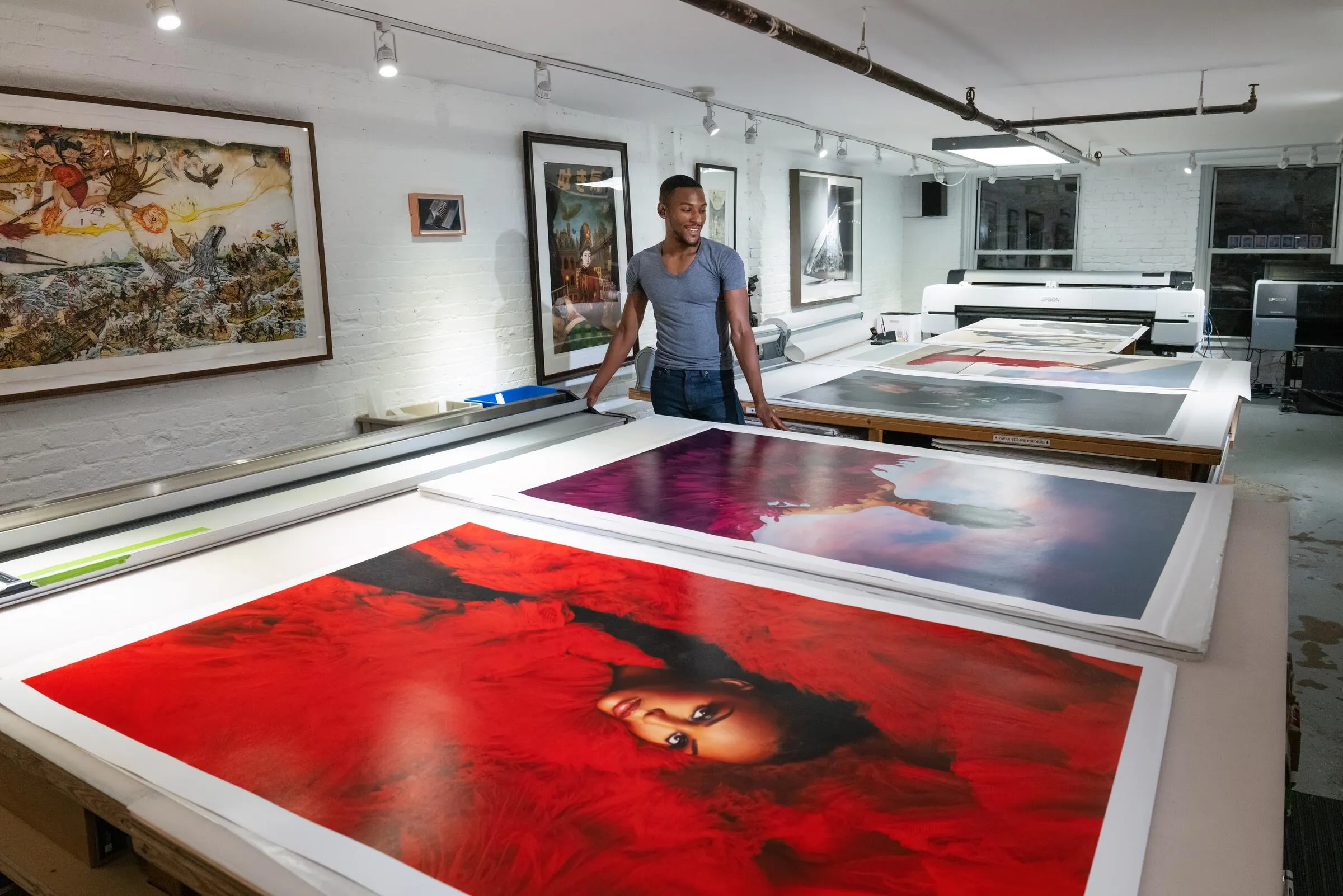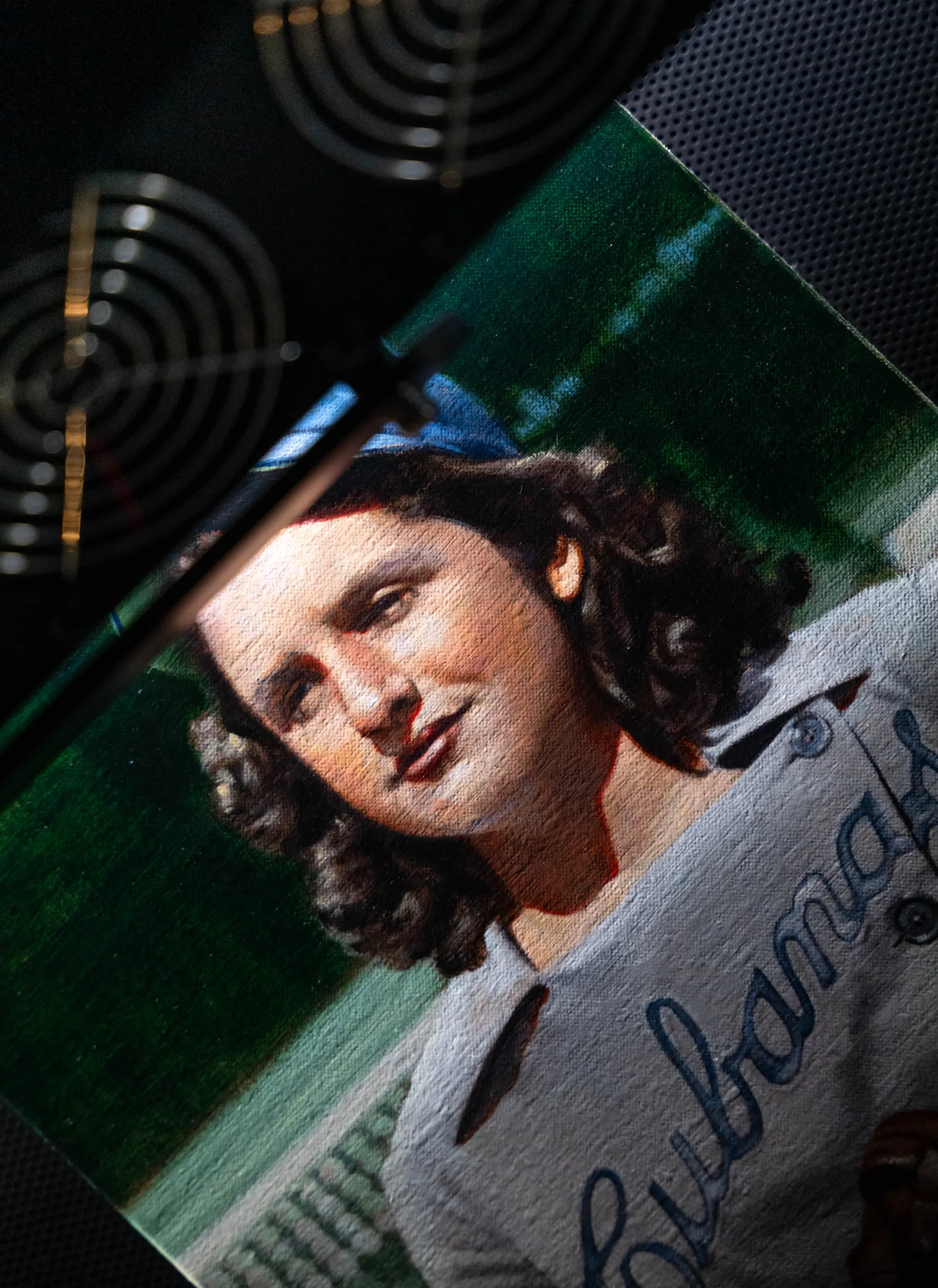

Why High Resolution Matters for Art Prints
Quick answer: The resolution you capture at the master stage sets the largest size you can print without losing detail. Too few pixels and the print goes soft or pixelated, and no software recovers detail that was never captured. Because files scale down without loss but never up, the practical rule is to capture once at high resolution — high enough to cover both today's print and any larger print you might want later.
Resolution is the quiet variable that decides whether a reproduction looks crisp or soft. It doesn't announce itself the way color or paper does, but it sets a hard ceiling on print size and quality that no later step can lift. This guide explains how capture resolution determines what you can print, what happens when there isn't enough, and why scanning once at the right resolution is the cheaper decision.
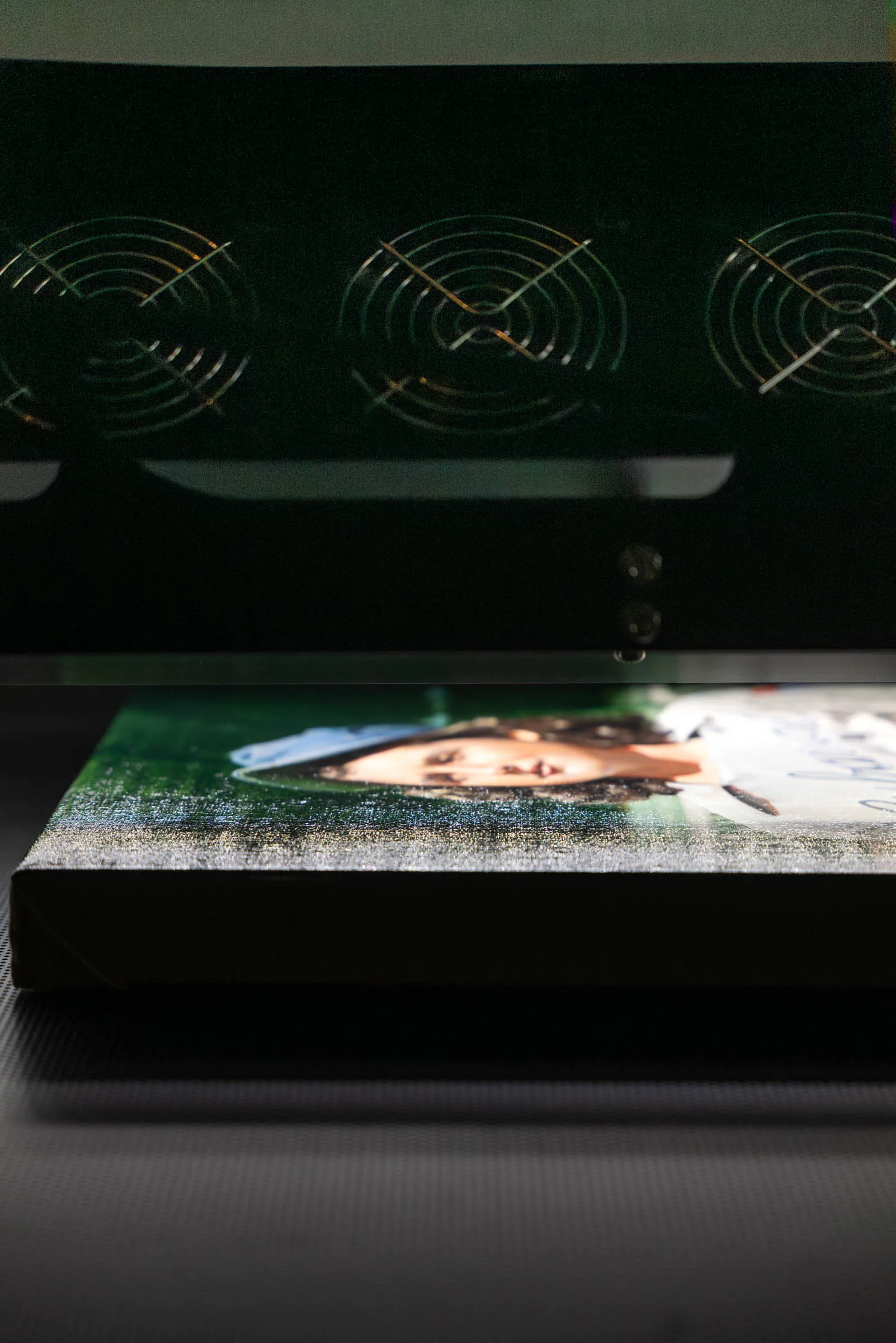
How Capture Resolution Sets the Print Ceiling
A digital file holds a fixed number of pixels — captured once, at the moment of scanning, and never added to. Resolution, measured in PPI (pixels per inch), describes how densely those pixels are packed across an inch of the original. Total pixel count is what determines how large you can print.
The math is direct. Divide a file's pixel dimensions by your output resolution to get the maximum print size. A 20-inch-wide painting scanned at 600 PPI holds 12,000 pixels across (20 x 600). At a 300 PPI output — the standard minimum for a giclee print — that file prints faithfully at 40 inches wide (12,000 / 300). Capture the same painting at 1200 PPI and you get 24,000 pixels across, which prints at 80 inches wide at 300 PPI. Same original, double the capture resolution, double the largest faithful print.
This is why capture resolution is a ceiling, not a setting you adjust later. Output resolution is flexible; you choose it when you prepare a file for a specific print. But the pixels available to spread across that print were fixed at capture. You can always print smaller than the ceiling. You can never print larger without consequences.
What Happens With Too Little Resolution
Push a file past its ceiling and the print degrades in predictable ways.
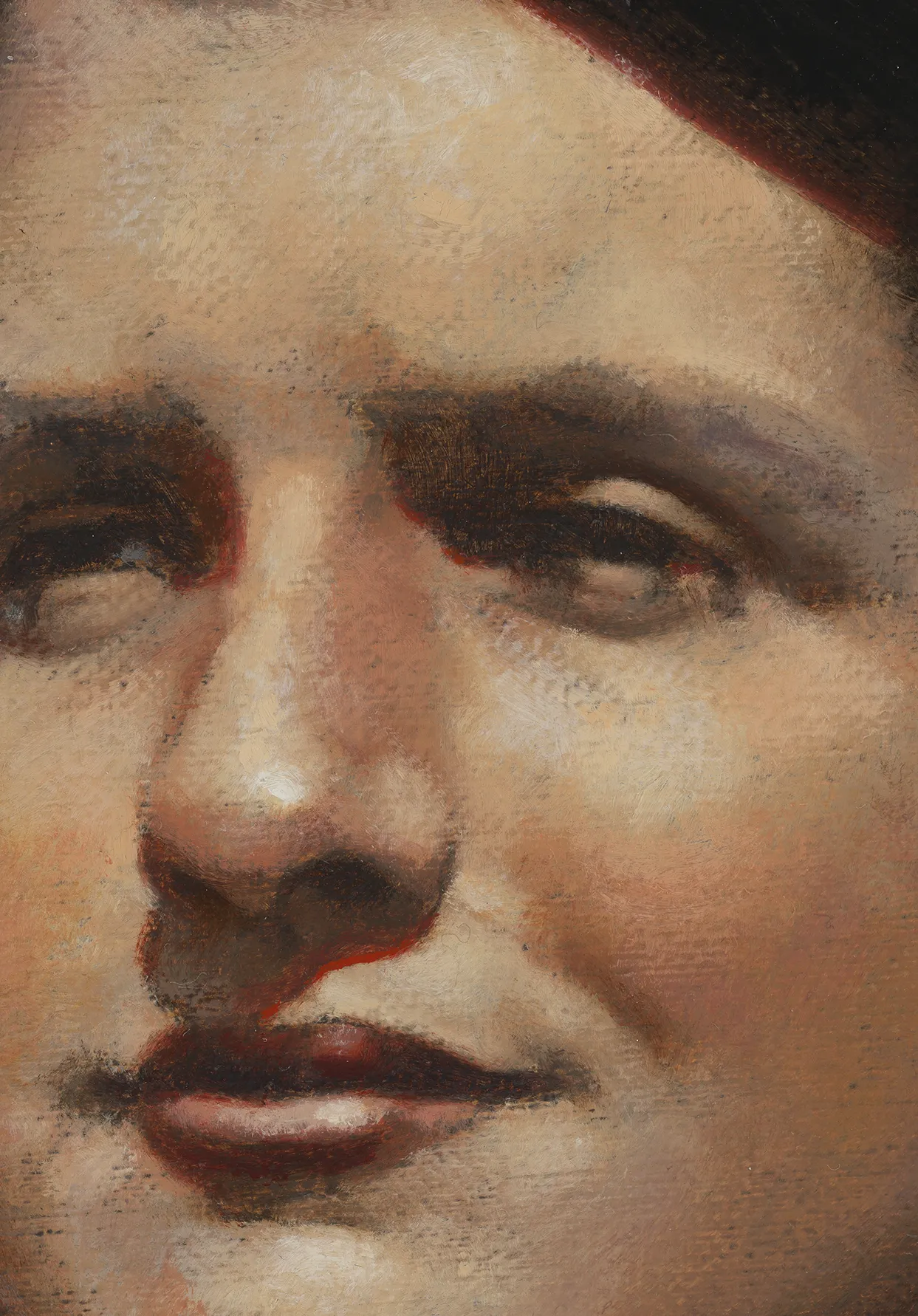
First the print goes soft. Spread too few pixels across too large a print and fine detail blurs — edges lose crispness, fine lines smear, the texture of the original flattens. Push further and the print pixelates: individual pixels become visible as a stair-stepped, blocky pattern, most obvious on diagonal lines and curved edges.
Low resolution also creates a subtler problem in smooth areas. A watercolor wash, a soft sky, a gradual shadow — these continuous tonal transitions need enough pixels to stay smooth. With too few, they break into visible steps, an artifact called banding. So insufficient resolution hurts both the sharpest detail and the smoothest gradients in the same file.
The instinct is to fix this by upscaling — asking Photoshop or an AI tool to enlarge the file. It doesn't work, and it's worth understanding why. Upscaling interpolates: it calculates new pixels by guessing at the values between existing ones. The result is a larger file, not a more detailed one. The new pixels are educated mathematical estimates derived from their neighbors, and however sophisticated the algorithm, it cannot recover information that was never captured from the original. Detail that wasn't there at capture stays absent.
Resolution Is Necessary, Not Sufficient
High resolution alone doesn't make a good reproduction. A 1600 PPI scan made with poor lighting and uncalibrated color is a large, low-quality file — plenty of pixels, all recording an inaccurate capture. Resolution sets the size and detail ceiling; color management, lighting, bit depth, and dynamic range decide whether the pixels under that ceiling are any good.
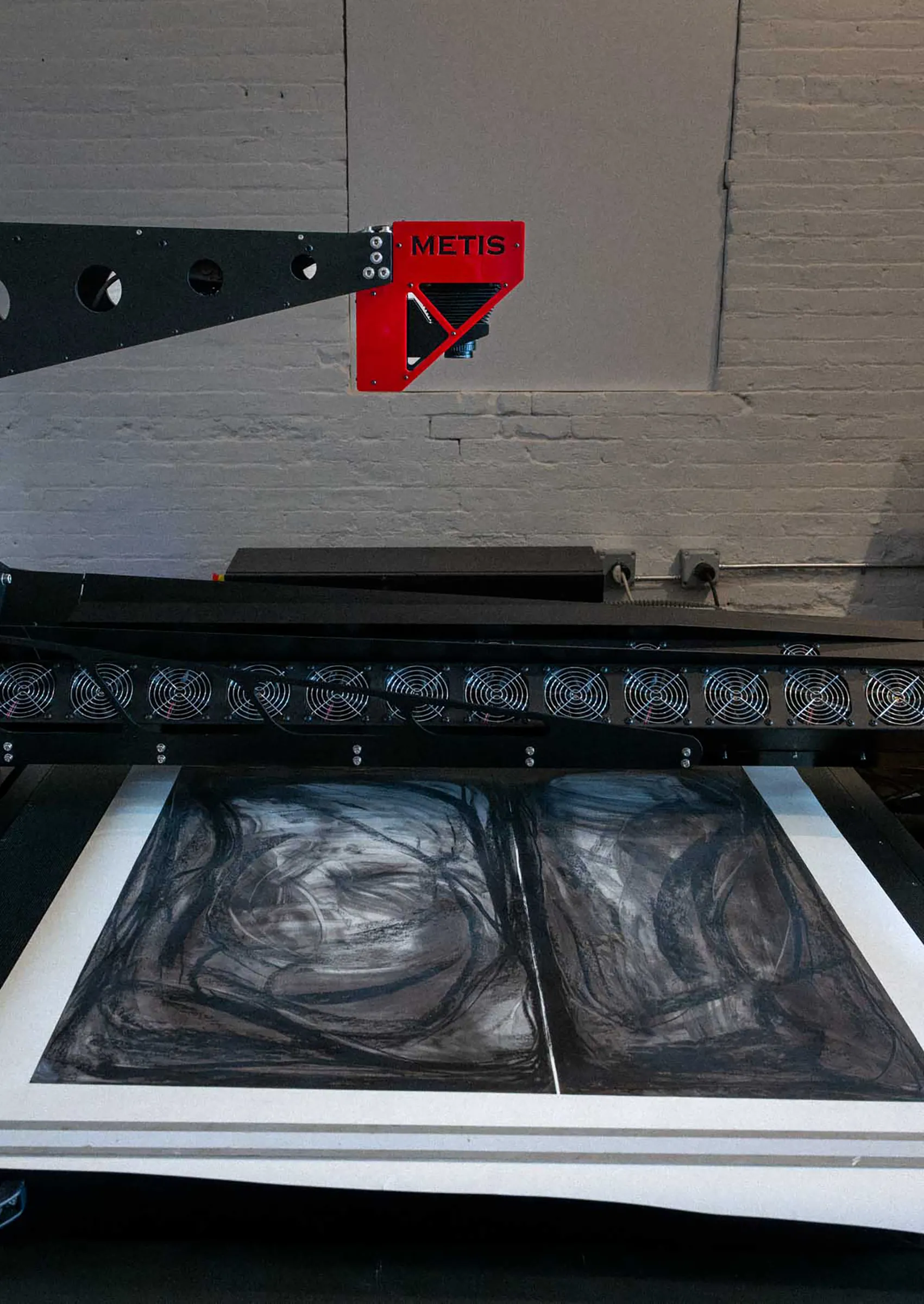
One distinction matters when comparing scanning equipment: native optical resolution versus interpolated resolution. Native optical resolution is what a scanner's sensor and optics actually capture — real, distinct measurements per inch of the original. Interpolated resolution is a software-inflated number: the scanner captures at its true optical resolution, then computes extra pixels to advertise a bigger figure. A scan marketed at 9600 DPI with a 600 PPI native optical resolution captures no more real detail than a 600 PPI scan. When you ask about resolution, ask for the native optical figure — it's the only one that reflects real captured detail. The Metis DRS 2020, which Brooklyn Editions uses, has a native optical resolution up to 1600 PPI.

The Scan-Once Logic
For reproduction, the guiding principle is simple: scan once, scan right. Capturing at high resolution while the original is in hand is almost always cheaper than rescanning later, and it removes a real risk — that the original won't be available when you want a larger print.
Consider how this plays out. An artist scans a painting at 300 PPI because the first print is at original size, then sells the painting. Two years later a gallery wants prints at twice the original dimensions. The 300 PPI file can't deliver them, and the original is gone — there's no rescan possible. A 1200 PPI capture at the outset would have covered both prints with room to spare. The marginal cost of the higher-resolution scan up front is almost always lower than the cost and risk of needing it later and not having it.
This logic is strongest for small originals. A 5 x 7-inch drawing scanned at 1200 PPI produces a 6,000 x 8,400-pixel file, which reproduces at 20 x 28 inches at 300 PPI — far larger than the original — with no loss. Small works benefit most from high-resolution capture, because high resolution is the only way to preserve the option of large-format reproduction without going back to the original. The same reasoning is why capture resolution should always be driven by likely use, not just the first print. Our guide to choosing the right resolution covers the full picture in what DPI to scan artwork at.
How to Capture Enough Resolution
A few practical guidelines cover most reproduction work.
- Reproduction at original size: 300 PPI minimum; 600 PPI for quality headroom and the option to enlarge.
- Edition work with likely enlargement: 1200 PPI, which supports prints up to four times the original size without quality loss.
- Small originals (under 10 inches): 1200-1600 PPI; small works gain the most from high-resolution capture.
- Always capture high and scale down: never capture low and try to upscale. Files reduce without loss; they never enlarge without it.
If you're unsure what a specific project needs, the right starting point is a conversation with your scanning studio about intended use, scale, and your plans for the files — before the work comes in. The studio can then recommend a resolution that covers your needs without producing files larger than necessary.
Frequently Asked Questions
What resolution do I need for high-quality art prints?
For a giclee print at original size, capture so the file reproduces at 300 PPI at that size — 600 PPI gives headroom to enlarge. For edition work you may want to print larger, 1200 PPI supports up to four times the original dimensions. Small originals are often captured at 1200-1600 PPI so they can be reproduced large.
Can I increase the resolution of a low-resolution file?
Not without loss of quality. Upscaling interpolates new pixels by estimating values between the existing ones, producing a larger file but no additional real detail. No software, including AI upscalers, can recover detail that was never captured. Resolution can be reduced from a high-resolution file cleanly, but not added.
What happens if I print larger than my file allows?
The print loses sharpness first — fine detail blurs and texture flattens. Push further and it pixelates, showing a blocky, stair-stepped pattern on edges and curves. Smooth tonal areas like washes and skies can also band into visible steps. The fix is capturing at adequate resolution up front, not enlarging afterward.
Is native optical resolution the same as the advertised DPI?
Often not. Native optical resolution is what a scanner's sensor actually captures; advertised DPI figures are sometimes interpolated, with software-computed pixels inflating the number. A scan listed at 9600 DPI may have a much lower native optical resolution and capture no more real detail than that lower figure. Always ask for the native optical resolution.
Professional Fine Art Reproduction at Brooklyn Editions
Brooklyn Editions reproduces original artwork as giclee and archival pigment prints, scanning on the Metis DRS 2020 and printing under one color-managed roof so the chain from original to print never breaks. Every project starts with a consultation about your work and how you want to print it, and editions are proofed against the original before they run. To start a reproduction, see our fine art printing services, and for the capture side of the process, read our guide to fine art scanning.